Windows Server 성능 모니터링 완벽 가이드
서버 성능 문제는 증상이 나타나기 전에 선제적으로 모니터링해야 합니다. Windows Server는 성능 카운터, 이벤트 로그, WMI 등 다양한 모니터링 인터페이스를 제공합니다. 이 글에서는 실무에서 바로 활용 가능한 모니터링 방법을 소개합니다.
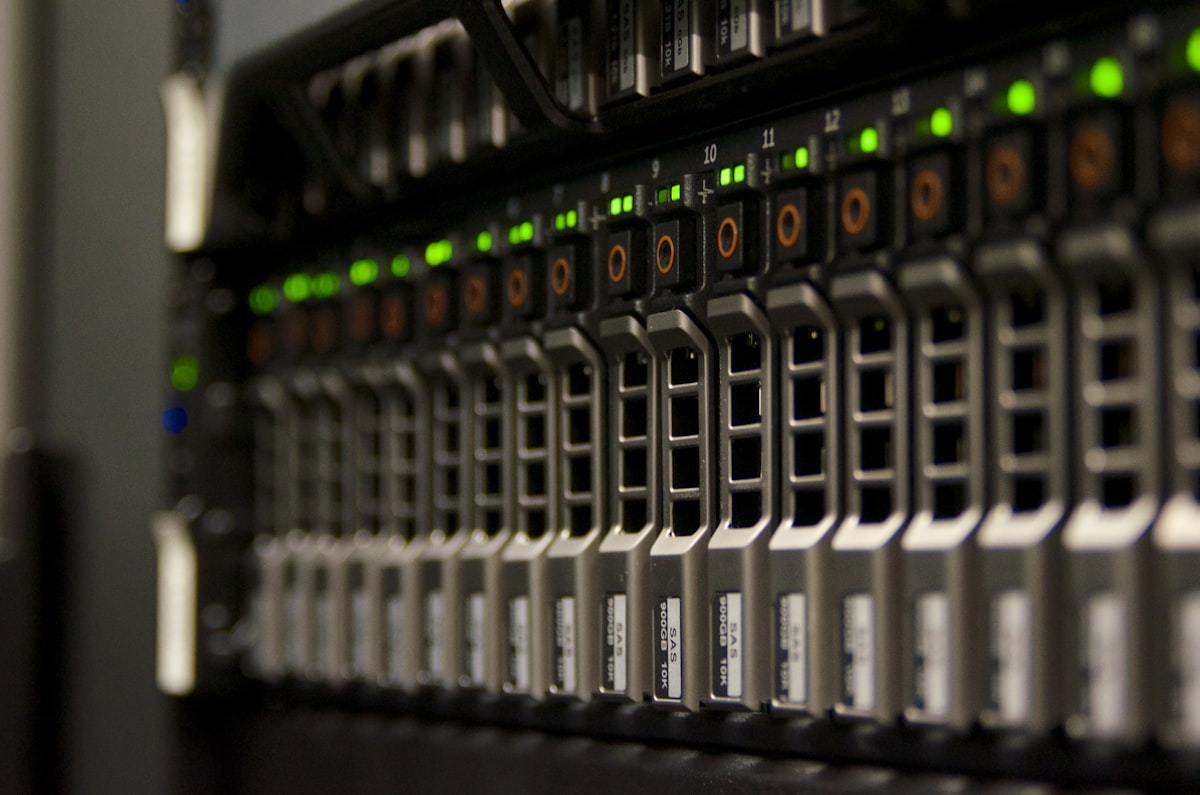
성능 카운터 기본 이해
핵심 성능 카운터
| 카운터 | 정상 범위 | 경고 기준 |
|---|---|---|
\Processor(_Total)\% Processor Time |
< 70% | > 85% 지속 |
\Memory\Available MBytes |
> 전체의 20% | < 10% |
\PhysicalDisk(_Total)\% Disk Time |
< 50% | > 80% |
\Network Interface(*)\Bytes Total/sec |
< 80% 대역폭 | > 90% |
\System\Processor Queue Length |
< CPU 수 × 2 | > CPU 수 × 4 |
PowerShell로 실시간 모니터링
# CPU 사용률 실시간 확인 (5초 간격)
Get-Counter -Counter "\Processor(_Total)\% Processor Time" `
    -SampleInterval 5 -MaxSamples 12 |
    ForEach-Object {
        $cpu = [math]::Round($_.CounterSamples[0].CookedValue, 1)
        Write-Host "$(Get-Date -Format 'HH:mm:ss') CPU: $cpu%"
    }

# 메모리 사용량 확인
$os = Get-WmiObject Win32_OperatingSystem
$totalMB = [math]::Round($os.TotalVisibleMemorySize / 1KB)
$freeMB  = [math]::Round($os.FreePhysicalMemory / 1KB)
$usedMB  = $totalMB - $freeMB
$usedPct = [math]::Round($usedMB / $totalMB * 100, 1)

Write-Host "메모리: ${usedMB}MB 사용 / ${totalMB}MB 전체 ($usedPct%)"
종합 성능 대시보드
function Get-ServerPerformance {
    param([string]$ComputerName = $env:COMPUTERNAME)

    $counters = @(
        "\Processor(_Total)\% Processor Time",
        "\Memory\Available MBytes",
        "\PhysicalDisk(_Total)\Disk Reads/sec",
        "\PhysicalDisk(_Total)\Disk Writes/sec",
        "\Network Interface(*)\Bytes Total/sec",
        "\System\Processor Queue Length"
    )

    $samples = Get-Counter -ComputerName $ComputerName `
        -Counter $counters -SampleInterval 3 -MaxSamples 3

    $avg = $samples.CounterSamples | Group-Object Path |
        ForEach-Object {
            [PSCustomObject]@{
                Counter = $_.Name -replace "^\\\\[^\\]+", ""
                Average = [math]::Round(
                    ($_.Group | Measure-Object CookedValue -Average).Average, 2
                )
            }
        }

    $avg | Format-Table -AutoSize
}

Get-ServerPerformance
성능 데이터 수집기(PerfMon)
# 성능 데이터 수집기 세트 생성 및 시작
$query = New-Object System.Diagnostics.Eventing.Reader.EventLogQuery

# logman으로 성능 로그 생성
logman create counter "ServerMonitor" `
    --v `
    -c "\Processor(_Total)\% Processor Time" `
       "\Memory\Available MBytes" `
       "\PhysicalDisk(_Total)\% Disk Time" `
    -si 30 `
    -f csv `
    -o "C:\PerfLogs\ServerMonitor"

# 수집 시작/중지
logman start ServerMonitor
logman stop ServerMonitor

# 현재 수집기 목록
logman query
프로세스별 리소스 사용량
# CPU 사용률 상위 프로세스
Get-Process | Sort-Object CPU -Descending | Select-Object -First 10 |
    Format-Table Name, ID,
    @{N='CPU(s)'; E={[math]::Round($_.CPU, 1)}},
    @{N='MemMB'; E={[math]::Round($_.WorkingSet/1MB, 1)}},
    Handles -AutoSize

# 메모리 사용 상위 프로세스
Get-Process | Sort-Object WorkingSet -Descending | Select-Object -First 10 |
    Format-Table Name, ID,
    @{N='MemMB'; E={[math]::Round($_.WorkingSet/1MB, 1)}},
    @{N='VirtualMB'; E={[math]::Round($_.VirtualMemorySize64/1MB, 1)}} -AutoSize

# 특정 프로세스 상세 모니터링
while ($true) {
    $proc = Get-Process -Name "w3wp" -ErrorAction SilentlyContinue
    if ($proc) {
        $proc | Format-Table Name, ID,
            @{N='CPU'; E={[math]::Round($_.CPU, 1)}},
            @{N='MemMB'; E={[math]::Round($_.WorkingSet/1MB, 1)}}
    }
    Start-Sleep -Seconds 5
}

디스크 I/O 분석
# 디스크 사용량 확인
Get-PSDrive -PSProvider FileSystem |
    Select-Object Name,
    @{N='UsedGB'; E={[math]::Round($_.Used/1GB, 1)}},
    @{N='FreeGB'; E={[math]::Round($_.Free/1GB, 1)}},
    @{N='TotalGB'; E={[math]::Round(($_.Used+$_.Free)/1GB, 1)}},
    @{N='UsedPct'; E={[math]::Round($_.Used/($_.Used+$_.Free)*100, 1)}} |
    Format-Table -AutoSize

# 디스크 I/O 성능
Get-Counter -Counter @(
    "\PhysicalDisk(_Total)\Disk Reads/sec",
    "\PhysicalDisk(_Total)\Disk Writes/sec",
    "\PhysicalDisk(_Total)\Avg. Disk Queue Length"
) -SampleInterval 5 -MaxSamples 6 |
    ForEach-Object {
        $_.CounterSamples | Format-Table Path,
        @{N='Value'; E={[math]::Round($_.CookedValue, 2)}} -AutoSize
    }
네트워크 성능 모니터링
# 네트워크 어댑터 현재 상태
Get-NetAdapterStatistics |
    Select-Object Name,
    @{N='ReceivedMB'; E={[math]::Round($_.ReceivedBytes/1MB, 2)}},
    @{N='SentMB'; E={[math]::Round($_.SentBytes/1MB, 2)}},
    ReceivedUnicastPackets, SentUnicastPackets |
    Format-Table -AutoSize

# 네트워크 연결 상태
Get-NetTCPConnection |
    Group-Object State |
    Sort-Object Count -Descending |
    Format-Table Name, Count -AutoSize

# 대역폭 사용률 실시간 (10초 평균)
$adapter = "Ethernet"
Get-Counter "\Network Interface($adapter)\Bytes Total/sec" `
    -SampleInterval 1 -MaxSamples 10 |
    ForEach-Object {
        $mbps = [math]::Round($_.CounterSamples[0].CookedValue * 8 / 1MB, 2)
        Write-Host "$(Get-Date -Format 'HH:mm:ss') $adapter: $mbps Mbps"
    }
성능 알림 스크립트
# 임계값 초과 시 이메일 알림
function Monitor-ServerResources {
    param(
        [int]$CpuThreshold = 85,
        [int]$MemThresholdMB = 1024,
        [int]$DiskThreshold = 90
    )

    # CPU 확인
    $cpu = (Get-Counter "\Processor(_Total)\% Processor Time").CounterSamples[0].CookedValue
    if ($cpu -gt $CpuThreshold) {
        Write-Warning "CPU 경고: $([math]::Round($cpu, 1))% (임계값: $CpuThreshold%)"
    }

    # 메모리 확인
    $freeMem = (Get-WmiObject Win32_OperatingSystem).FreePhysicalMemory / 1KB
    if ($freeMem -lt $MemThresholdMB) {
        Write-Warning "메모리 경고: 여유 $([math]::Round($freeMem, 0))MB (임계값: $MemThresholdMB MB)"
    }

    # 디스크 확인
    Get-PSDrive -PSProvider FileSystem | ForEach-Object {
        $used = $_.Used / ($_.Used + $_.Free) * 100
        if ($used -gt $DiskThreshold) {
            Write-Warning "디스크 경고: $($_.Name): 드라이브 사용률 $([math]::Round($used,1))%"
        }
    }
}

# 5분마다 모니터링
while ($true) {
    Monitor-ServerResources
    Start-Sleep -Seconds 300
}
성능 모니터링의 핵심은 정상 기준선(Baseline)을 파악하는 것입니다. 서버를 처음 구성할 때부터 성능 데이터를 수집하여 정상 패턴을 파악해두면, 이후 문제 발생 시 빠르게 이상 징후를 발견할 수 있습니다. 수집된 데이터는 Grafana, Azure Monitor 같은 도구로 시각화하면 더욱 효과적입니다.
댓글남기기